2019年9月3日 星期二

git - 查詢某個區間、某人的修改紀錄


公司到了月底,要提交上月份的工作紀錄,
利用 git commit 來回憶一下

$ cd [專案目錄]
$ git log --since='2019-08-01' --before='2019-08-31' --author=Frankie

參考
Git 基礎 - 檢視提交的歷史記錄

2019年9月2日 星期一

Secure Shell Extension SSH Key 錯誤


使用 Google Chrome 的 Secure Shell Extension 出現 ssh key 的問題時,


請在 SSH 的視窗按下 Ctrl + shift + J
並輸入 term_.command.removeAllKnownHosts() 即可


2019年9月1日 星期日

樹梅派 - 安裝 Docker

經過了快10次安裝,
終於測試出安裝沒有錯誤的方式,
我使用的 img 檔是【2019-07-10-raspbian-buster-full】
如果你使用的是 Stretch 安裝應該就不會有問題

參考的地方有
docker 快速使用 | 葉子
树莓派 NOOBS V3.2.0 Docker – 通信科协
linux - Raspberry Pi 3上的Docker安装失败,无法匹配aufs中的内核版本
Get Docker Engine - Community for Debian

安裝期間一直遇到 aufs-dkms 的問題,
根據第二篇參考,目前官方還沒有解決,
接下來將從最開始, img 檔寫入到 SD 卡之後開始。


第一階段說明 Raspbian 的基本設定
  1. img 檔寫入 SD 卡之後,在 SD 卡新增一個 ssh 空檔,以便等一下可以用 ssh 連線
  2. 先確定日期正確與否,不正確的話就更新日期
    • $ date
    • $ sudo date -s"2019-09-01 15:30:00"
  3. 若是用 pi2 的板,這邊就要先執行 raspi-config,將記憶卡未分割的部分擴展
    • sudo raspi-config
    • 7 Advanced Options\7A1 Expand Filesystem
  4. ssh 連線到樹梅派之後,修改套件來源
    • $ sudo nano /etc/apt/sources.list
      
    • deb http://free.nchc.org.tw/raspbian/raspbian/ buster main contrib non-free rpi
    • sudo nano /etc/apt/sources.list.d/raspi.list
    • deb http://mirror.tuna.tsinghua.edu.cn/raspberrypi/ buster main
    • $ sudo apt-get clean all
      $ sudo apt update
  5. 開啟 VNC 連線
    • sudo raspi-config
    • 進入 [5 Interfacing Options] 將 VNC 開啟
  6. 使用 VNC 連線進入 xwindow
    • 第一次進入 xwindow 時,會跳出一些設定畫面,請跟著做完
    • 軟體更新也請做完
第二階段說明 Docker 安裝

  1. 更新軟件源
    • $ sudo apt update
  2. 安裝 docker  官方源會用到的軟件
    • $ sudo apt install gnupg2
    • pi2 用 gnupg ,應該不用另外安裝
  3. 添加 gpg key
    • $ curl -fsSL https://download.docker.com/linux/raspbian/gpg | sudo apt-key add - 
      
  4. 添加 docker 套件來源
    • $ echo "deb [arch=armhf] https://download.docker.com/linux/raspbian stretch stable" | sudo tee /etc/apt/sources.list.d/docker.list 
    • $ sudo apt update
  5. 安裝 docker
    • $ sudo apt install --no-install-recommends docker-ce
  6. 啟動 docker
    • $ sudo systemctl enable docker
      $ sudo systemctl start docker.service
  7. 將使用者加入群組
    • $ sudo usermod -aG docker $USER
  8. 確認 Docker 執行正常
    • $ sudo docker run hello-world


2019年8月29日 星期四

Docker - 小筆記((整理中))

測試 Docker 是否安裝成功,
通常會使用 hello-world 來測試,
不過要注意的是,每下一次下面的指令,container 就會多一個
docker run hello-world

入門指令
## List Docker CLI commands
docker
docker container --help

## Display Docker version and info
docker --version
docker version
docker info

## Execute Docker image
docker run hello-world

## List Docker images
docker image ls

## List Docker containers (running, all, all in quiet mode)
docker container ls
docker container ls --all
docker container ls -aq


docker run

  • -d background 執行
  • -p [docker port]:[外部 prot] 指定 port 對應

docker run -d -p 4000:80 friendlyhello

docker container

  • ls 列出 container

$ docker container ls
CONTAINER ID        IMAGE               COMMAND             CREATED
1fa4ab2cf395        friendlyhello       "python app.py"     28 seconds ago

  • stop [container id] 停止指定的 container

docker container stop 1fa4ab2cf395

docker images

  • 列出 images

$ docker images

REPOSITORY               TAG                 IMAGE ID            CREATED             SIZE
friendlyhello            latest              d9e555c53008        3 minutes ago       195MB
gordon/get-started         part2               d9e555c53008        3 minutes ago       195MB
python                   2.7-slim            1c7128a655f6        5 days ago          183MB
...

  • 等同 docker image ls

$ docker image ls


docker build -t friendlyhello .  # Create image using this directory's Dockerfile
docker run -p 4000:80 friendlyhello  # Run "friendlyhello" mapping port 4000 to 80
docker run -d -p 4000:80 friendlyhello         # Same thing, but in detached mode
docker container ls                                # List all running containers
docker container ls -a             # List all containers, even those not running
docker container stop <hash>           # Gracefully stop the specified container
docker container kill <hash>         # Force shutdown of the specified container
docker container rm <hash>        # Remove specified container from this machine
docker container rm $(docker container ls -a -q)         # Remove all containers
docker image ls -a                             # List all images on this machine
docker image rm <image id>            # Remove specified image from this machine
docker image rm $(docker image ls -a -q)   # Remove all images from this machine


參考
https://docs.docker.com/get-started/


2019年8月16日 星期五

Git - 相關常用指令


  • SSL 憑證問題
    1. git 從 2.14 版起支援 windows 的憑證存放區設定
    2. 使用 git config --global http.sslBackend schannel 指令啟用,會跳出帳號密碼視窗讓你輸入
  • pwd
    • 顯示目前路徑
  • cd
    • 切換路徑
  • git status
    • 顯示目前 branch 狀態
  • git add [path/file_name]
    • 將檔案移到 stage 區
  • git reset HEAD [path/file_name]
    • 將檔案從 state 區移回到 working area 區,修改還在
  • git checkout [branch]
    • 切換 branch
  • git branch
    • git branch -d [branch]
      • 刪除 [branch]
    • git branch -D [branch]
      • 強制刪除 [branch]
  • git push [origin] :[branch]
    • 刪除遠端 branch
    • origin 指的是遠端主機的名字
    • [-f | -force ] 強制覆蓋遠端
  • git checkout -b [new_branch] [old_branch]
    • 建立 [new_branch] 且複製 [old_branch]
    • 可將 [new_branch] reset soft,用來重新整理 commit 點
  • git show [commit_id]
    • 顯示 [commit_id] 修改了那些檔案與內容
    • --no-patch 不顯示檔案與內容,只顯示 commit message
  • git commit --amend --no-edit
    • 直接將修改的檔案加入上次的 commit
    • --no-edit 不修改 commit message

2019年5月21日 星期二

C# - 內送的表格式資料流(TDS) 遠端程序呼叫(RPC) 通訊協定資料流不正確


今天在跨 DB 批次塞資料的時候出現這個錯誤,


一開始以為是某筆資料問題、或是組 Insert SQL 哪邊沒處理好,
查了好久終於找到是寫 Log 的地方存檔錯誤,
根據參數 @p5 推斷出對應的欄位,
該欄位的資料型態是 VARCHAR(MAX),
於是乎終於在 GOOGLE 下對了關鍵字
"c# varchar max TDS RPC"

然後找到了發生一樣問題的文章
使用DbCommand傳遞參數發生例外
SQLCLR-SqlString Max Size 8000 Limitation

根據文章我的理解是這樣的,
在產生 Insert SQL 的時候,會去計算內容大小,
8000 以內跟 8000 以上產生的 statement 不一樣,
但如果內容有中文時,會造成計算上的錯誤,
所以就出現這個錯誤訊息了,
最後改法沒用文章裡面的解法,
直接把 VARCHAR(MAX) 改成 NVARCHAR(MAX) 結束。

2019年3月15日 星期五

SQL SERVER - 如何讓 sa 可以連線

被問太多次了,只好寫一下...
  1. 設定 SQL Server 驗證模式

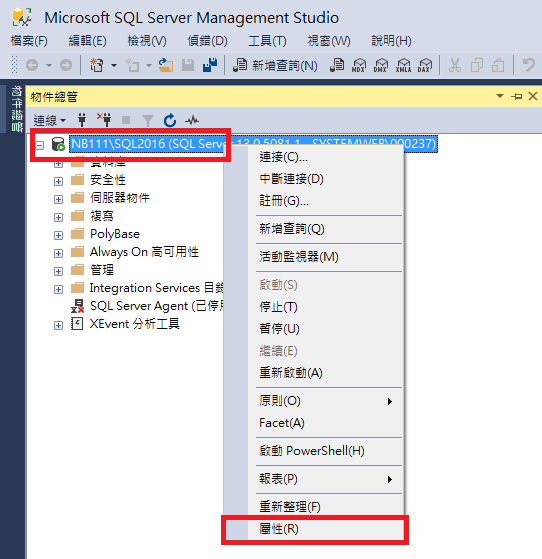
    1. 選到 SQL SERVER 滑鼠右鍵【屬性(R)】
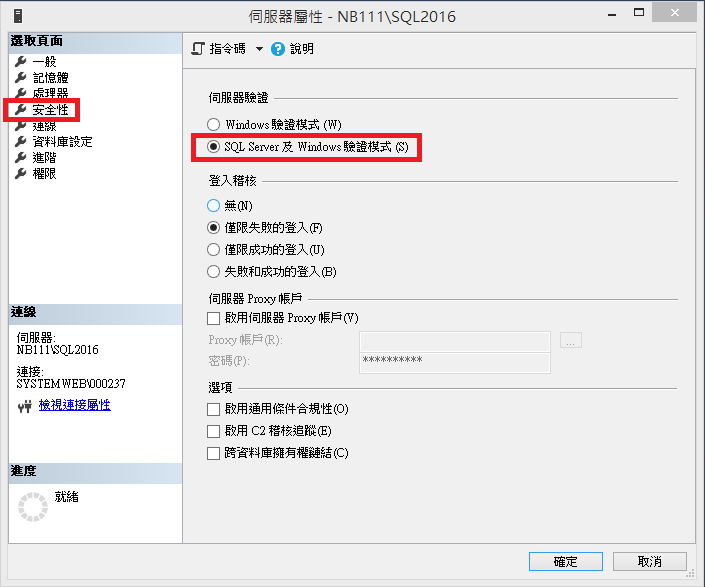
    1. 在【伺服器屬性】選【安全性】,改成【SQL Server 及 Windows 驗證模式(S)】
    1. 【確定】之後需要重啟SQL Server服務
  1. 設定 sa 為可登入

    1. 【安全性\登入】選【sa】,在【sa】上滑鼠右鍵【屬性(R)】。如果 sa 不能登入應該會有紅色 x 符號,不確定就跟著設定一次。
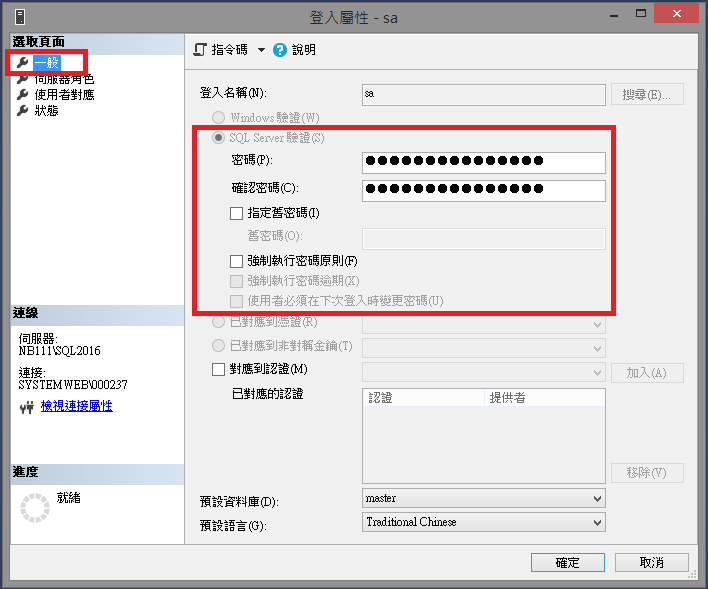
    1. 在【登入屬性】中,選【一般】,修改【密碼】,剩下的屬性如圖。
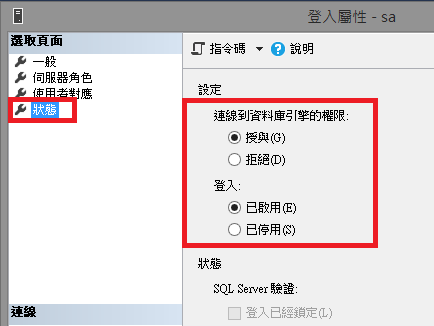
    1. 接著選【狀態】,設定如圖。確定之後應該就可以用 sa 連線